Google PageSpeed: A Guide to Understanding Your Results
Google PageSpeed: A Guide to Understanding Your Results
Section titled “Google PageSpeed: A Guide to Understanding Your Results”First time running PageSpeed Insights? You’re probably staring at a wall of warnings and wondering what to do next.
This guide is a quick reference to help you understand what each warning means and — more importantly — whether there’s actually something you can fix or if you can safely move on.
We’ll cover common scenarios across PageSpeed’s four tabs: Performance, Accessibility, Best Practices, and SEO.
Performance
Section titled “Performance”Improve image delivery
Section titled “Improve image delivery”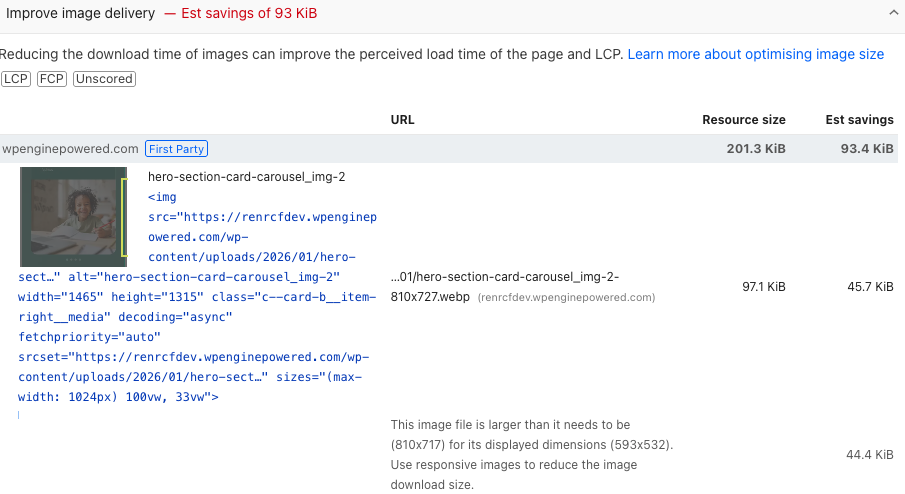
This warning indicates that your images are significantly larger than they need to be. To fix this, follow these three steps in order:
-
Use the proper image function — Never use raw
<img>tags. Always use render_wp_image for WordPress or @terrahq/astro-core for Astro. These handle responsive sizes, lazy loading, and format optimization automatically. -
Verify the file size is correct — Check that the image file itself isn’t unnecessarily heavy. A hero image shouldn’t exceed 200-300 KB in most cases.
-
Verify the dimensions are correct — Make sure the image dimensions match how it’s displayed. If an image shows at 593x532 pixels but the file is 810x717, you’re wasting bandwidth. Resize the image to match its display size (or use responsive images with
srcset). -
Verify the format is WebP — WebP provides superior compression compared to PNG or JPEG. Convert your images to WebP format to reduce file size without losing quality.
-
Verify WordPress resize dimensions match the rendered size — In WordPress, make sure the custom image size you define matches the actual rendered size in the layout. If you register an image size of 580px but the image is rendered at 593px, WordPress will not use that size and will instead fall back to the next larger available image. This results in downloading a heavier image than necessary.
How to fix it:
- Measure the real rendered width in the browser (DevTools)
- Update the registered WP image size to match or slightly exceed that value (e.g. 600px instead of 580px)
- Regenerate thumbnails using the Regenerate Thumbnails plugin so WordPress can serve the correct size
Example of custom image sizes in WordPress:
// Define custom image sizesadd_image_size('category_thumb', 300);add_image_size('tablets', 810, 999999999);add_image_size('mobile', 580, 999999999);Important: If you need to add or modify image sizes, talk to the dev lead first before making changes.
This ensures WordPress selects the optimal image instead of a larger fallback, reducing transferred bytes and improving PageSpeed scores.
LCP request discovery
Section titled “LCP request discovery”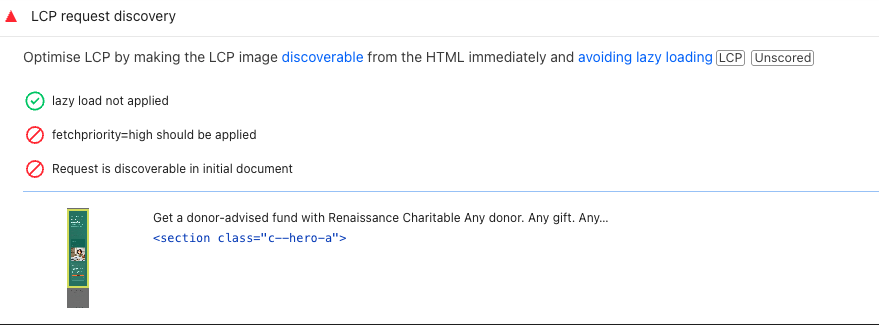
This warning tells you that your LCP image (usually the hero image) should have fetchpriority="high" and be discoverable in the initial HTML.
If you’re on a static project (Astro) — You can fix this directly. Both render_wp_image and @terrahq/astro-core have an option to set the priority to high.
If you’re on a dynamic project (WordPress) — This is something we’re actively working on. For now, you can acknowledge this warning.
Render blocking requests (CSS)
Section titled “Render blocking requests (CSS)”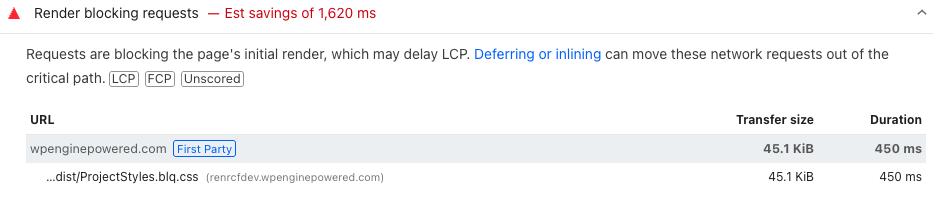
This warning applies specifically to stylesheets. Here’s how to interpret it:
If it’s a third-party stylesheet — Consider removing it entirely or loading it asynchronously if it’s not critical for your page.
If it’s your project stylesheet (Project.{hash}.css) — There’s not much you can do here, as this is your main CSS file and needs to load. However, you can reduce its size:
-
Use
@extendas much as possible to minimize CSS output. This will significantly reduce your stylesheet size. Learn more about utility classes with @extend. -
Starting in 2026, we’ll be implementing stylesheet splitting by breakpoint, which will help reduce the initial CSS payload by only loading the styles needed for the current viewport.
Network dependency tree / Avoid chaining critical requests
Section titled “Network dependency tree / Avoid chaining critical requests”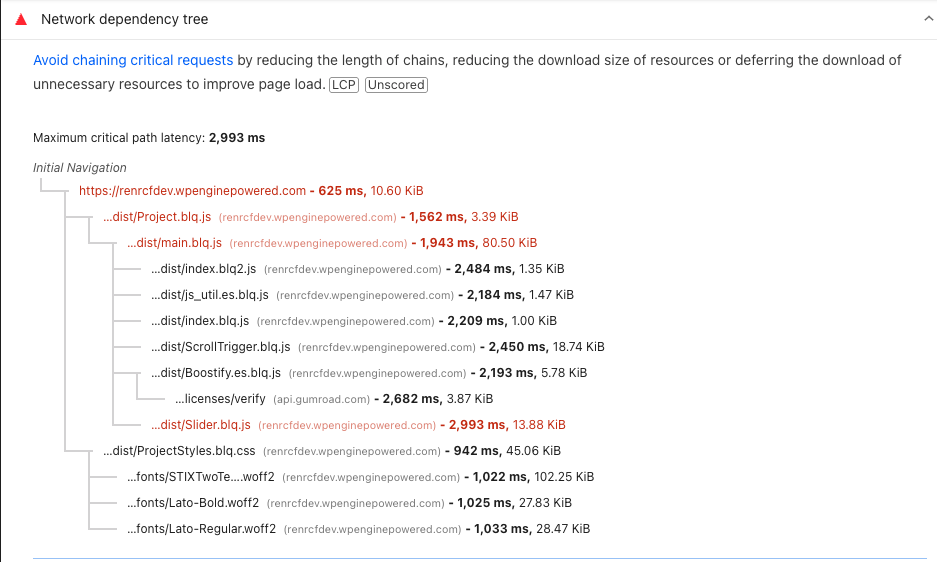
There’s literally nothing you can do here. Our framework is class-based, which naturally creates this dependency chain.
If you see third-party scripts like reCAPTCHA or other external services in this tree, there’s not much you can do about those either — they’re outside of your control.
This is one of those warnings you can safely acknowledge and move on.
Reduce unused CSS / Reduce unused JavaScript
Section titled “Reduce unused CSS / Reduce unused JavaScript”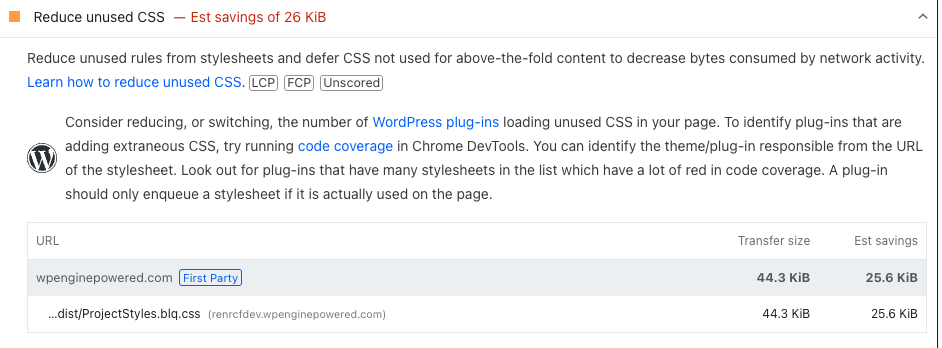
There’s not much you can do here. We load a single stylesheet with everything needed because we use page transitions — we want all styles available immediately rather than loading on demand.
However, two things can help:
-
Work mobile-first — If you’re developing from mobile to desktop, this warning should largely disappear.
-
Reuse components — The more you reuse components across your project, the lower the percentage of unused CSS and JavaScript will be on any given page.
Use efficient cache lifetimes
Section titled “Use efficient cache lifetimes”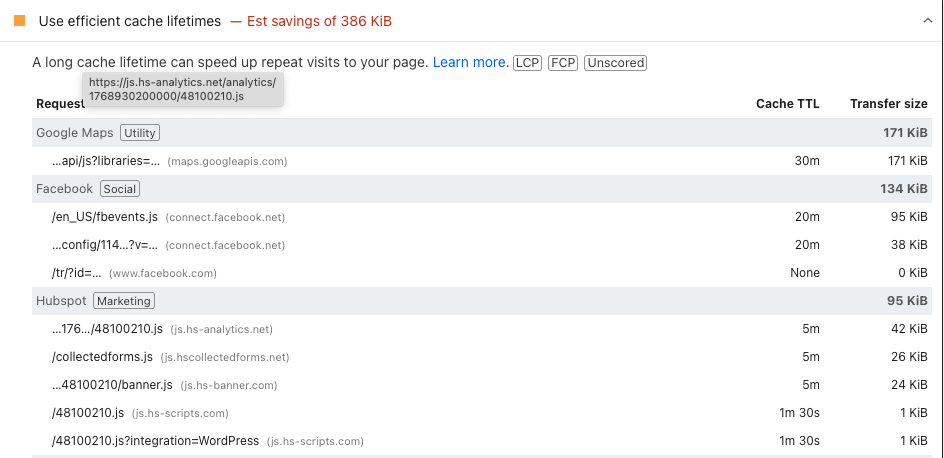
If you see this warning, it’s likely because Boostify’s onLoad delay is set too low.
Recommended values:
- Minimum:
1200ms - Maximum:
4000ms
If your project doesn’t have Boostify configured (which would be unusual), talk to your manager.
Avoid enormous network payloads
Section titled “Avoid enormous network payloads”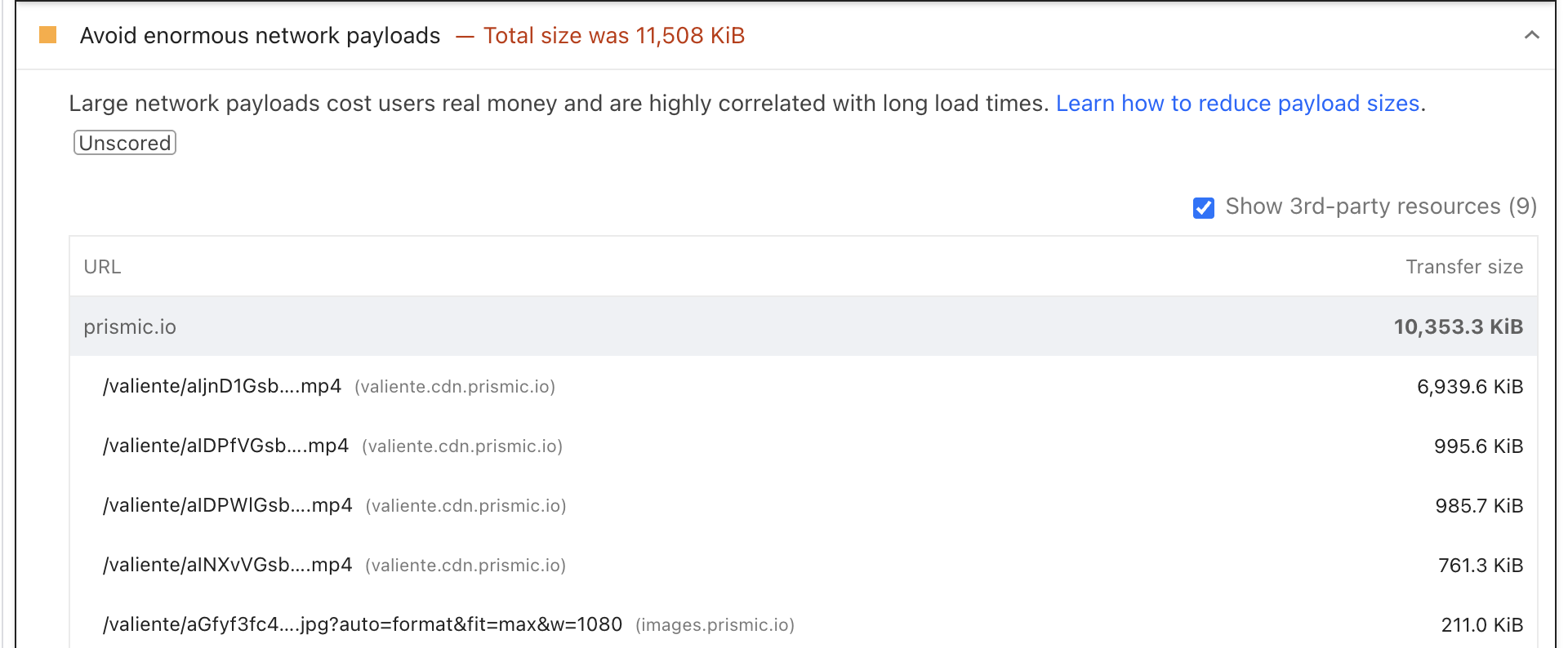
This should not happen. If you’re seeing large video files loading directly, you’re not using the correct components.
Always use Boostify’s video components:
VideoPlayerfor self-hosted videosVideoEmbedfor embedded videos (YouTube, Vimeo, etc.)
These components handle lazy loading and optimize video delivery automatically.
Accessibility
Section titled “Accessibility”Buttons do not have an accessible name
Section titled “Buttons do not have an accessible name”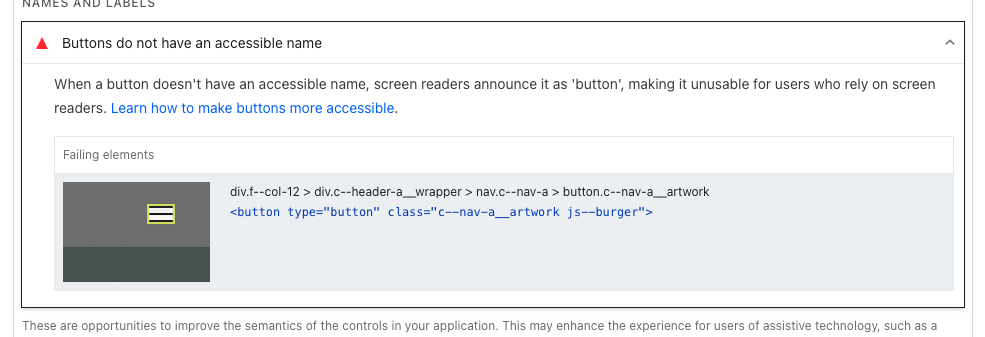
This usually appears on icon-only buttons like the hamburger menu. Screen readers can’t announce what the button does if there’s no accessible name.
Fix: Add an aria-label to describe the button’s purpose:
<button type="button" class="c--nav-a__artwork js--burger" aria-label="Open menu">Heading elements are not in a sequentially-descending order
Section titled “Heading elements are not in a sequentially-descending order”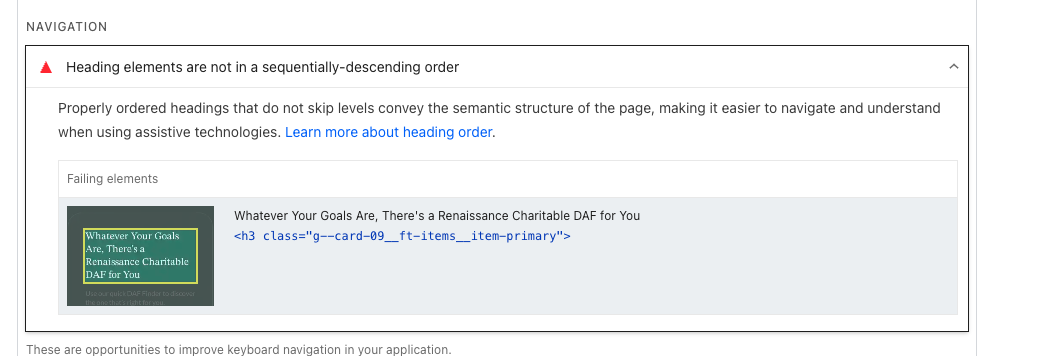
When working with modules, it’s important to pay attention to which heading level you use.
In static projects — This is easier to control since you know exactly which modules appear on each page.
In dynamic projects — This becomes tricky because modules can be reordered by content editors.
Key rules:
- Hero modules should always use
<h1> - There should only be one
<h1>per page - If a module can be repeated or reused, avoid hardcoding
<h1>in it
Page is blocked from indexing
Section titled “Page is blocked from indexing”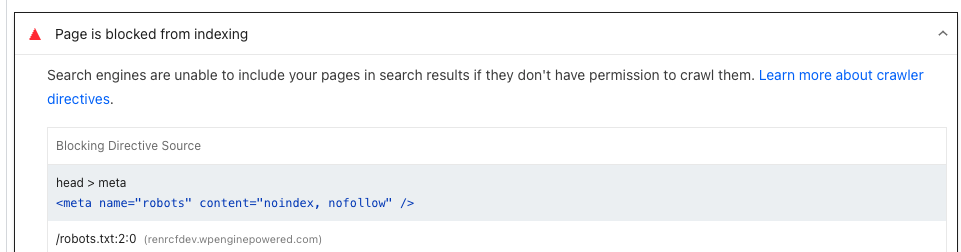
This warning appears when the page has <meta name="robots" content="noindex, nofollow"> and/or GTM is not configured.
During development — This is expected. We intentionally block indexing on staging and development environments.
Before launch — This is an error. If you’re about to go live and you see this warning, flag it to the dev lead immediately. The site needs GTM configured and the noindex directive removed before launch.
Knowledge Check
Test your understanding of this section
Loading questions...