Google Calendar
This page explains what Google Calendar is, how we use it in Terra and how to schedule a call.
What is Google Calendar?
Section titled “What is Google Calendar?”Google Calendar is Terra’s scheduling and coordination tool. It keeps track of meetings, holidays and team availability.
We use Google Calendar to:
- schedule internal and client meetings
- manage recurring events like daily or weekly syncs
- keep visibility on who is available and when
- receive reminders and avoid missing important calls
Scheduling a call
Section titled “Scheduling a call”Use scheduled calls when:
- multiple people need alignment
- a topic requires structure and preparation
- async communication on Slack becomes slow
How to schedule a call
Section titled “How to schedule a call”- Open Google Calendar
- In the left sidebar use
MEET WITH...to search for the person you need to meet with. This allows you to see their availability (free time = blank spaces).
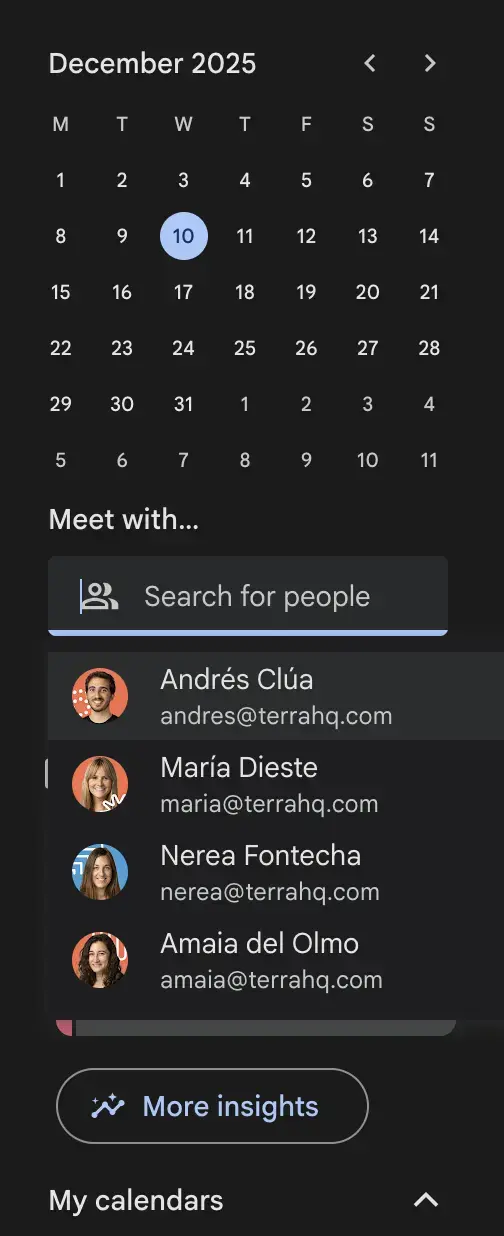
- Click on a time slot that works for all participants.
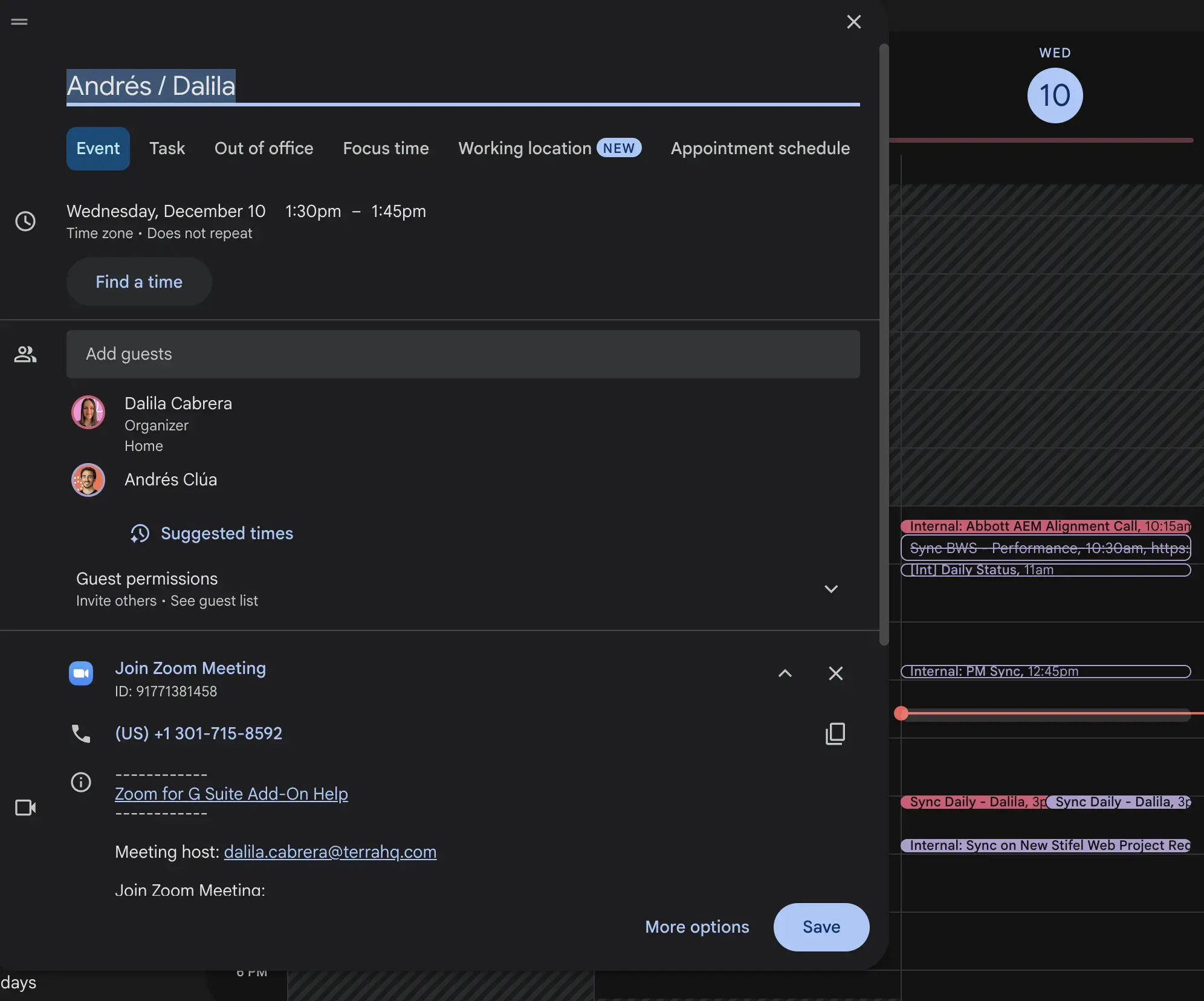
- Add a clear and descriptive Title:
- Use
INTfor internal calls - Use project acronym (example:
SEI) for project-related calls
- Use
Working Hours
Section titled “Working Hours”As you already know, Terra is a multi-timezone team, so setting your working hours is essential. It helps your teammates know when you’re available and prevents meetings from being scheduled outside your workday. This makes collaboration smoother and avoids time-zone conflicts.
How to set your working hours:
- Open Google Calendar Settings
- Go to General → Working hours & location
- Check Enable working hours and set your daily schedule
Once configured, Google Calendar will automatically prevent people from booking meetings with you outside your working hours.
Out of Office Calendar
Section titled “Out of Office Calendar”The Out of Office (OOO) Calendar is a shared team calendar separate from your personal Google Calendar. Its purpose is to give everyone visibility into who is out and when.
Before using it, you must request access from your PM.
How to record PTO (paid time off)
Section titled “How to record PTO (paid time off)”Once your PTO is approved:
- In your personal calendar:
- Create an
Out of officeentry (not a standard event).
- Create an
 - Title it:
 OOO – Your Name.
- In the shared Out of Office Calendar:
- Create a regular event for the same dates.
- Be sure that the calendar you’re creating it is the Out of Office Calendar (🟡)
 - Title it: OOO – Your Name.
This two-step process ensures:
- Your personal availability is correctly shown to anyone scheduling meetings.
- The entire team can easily see who is out by checking the shared OOO Calendar.
Good practices
Section titled “Good practices”- Keep your calendar updated — especially working hours, PTO, and big blocks of focus time
- Use clear titles (e.g.,
(INT) Andres / Meche,SEI - Alligment) - Invite only the necessary people
- Accept or decline invites — don’t leave events unanswered
- Respect working hours when scheduling calls for teammates
Knowledge Check
Test your understanding of this section
Loading questions...