Email templates
In this guide we will cover on tips and tricks for working with email templates and how to implement Pardot features. For this guide we will be using react-email, as it provides a clean and easy way to develop email templates and ensure compatibility as much as possible.
Developing email templates
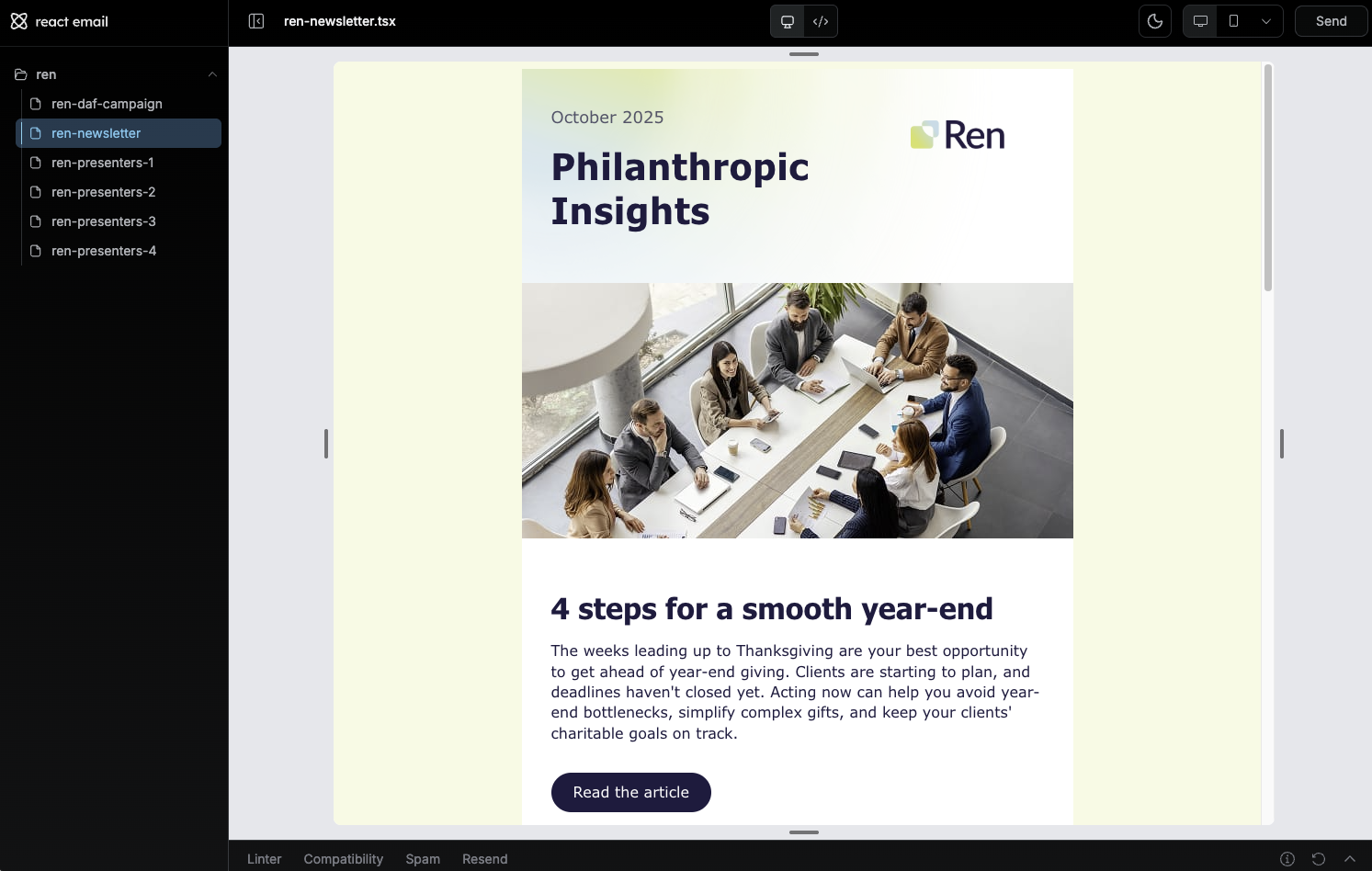
Section titled “Developing email templates”React Email is a library/framework for building email templates. It provides a component library and a way to render the templates in a browser.
First, we clone this repository containing the “builder” with the templates.
git clone https://github.com/terra-hq/email-template-editor.gitWe install the dependencies:
npm installWe start the development server:
npm run devThis will start the development server and we can preview the templates in the browser.
Folder structure
Section titled “Folder structure”Email templates should follow a clear and predictable folder structure to keep templates and assets organized, especially when working with multiple clients.
Recommended structure:
emails/├── client-name/│ ├── templates/│ │ ├── newsletter-2026-07.tsx│ │ ├── announcement-product-launch.tsx│ │ └── ...│ └── assets/│ ├── fonts/│ ├── media/│ └── ...client-name: Use the client name in kebab-case.templates: Contains the React Email templates for the client.assets: Contains all images and static assets used in the templates.
Naming conventions:
- Template file names should be descriptive and unique.
- Prefer combining the email type with a date or campaign name (e.g.
newsletter-2026-07.tsx). - Avoid using only generic names like
newsletter.tsxor only dates.
Development
Section titled “Development”For the development of templates using react-email, we don’t really need to know React, this uses React under the hood but the development is pretty much like HTML, using tags, just following the documentation to know which Components to use for the layouts is more than enough.
React Email provides a set of components to make developing templates easier. After the development is done, React Email automatically converts the layouts to tables and tries to enture compatibility as much as possible. For example, if we use some css properties that are not supported by the clients we are targeting, React Email will automatically include the necessary fallbacks if it can by adding the <!--[if !mso]><!-- and <![endif]--> comments and adding the code.
The core of the development of the templates is mostly done using the components <Body>, <Section>, <Row>, <Column>, <Heading>, <Text>, <Button>,… These components are used to build the layout of the email and the content of the email.
React Email will automatically build the tables, td, tr,… for us.
Styles
Section titled “Styles”Styles can be applied either inline or as classes inside the <style> tag.
Examples:
<Heading style={{ fontSize: '32px', color: '#1C1A40', padding: '0', fontFamily: 'Tahoma, sans-serif', fontWeight: 'bold', lineHeight: 'normal', display: 'block', margin: '0',}}>Title</Heading><Heading className="heading_class_name">Heading</Heading>We can use the Tailwind component to wrap the <Html> component and apply Tailwind CSS styles to the components if we choose to do so as well. https://react.email/docs/tailwind
Example:
<Tailwind> <Html> <Body> <Heading className="text-3xl font-bold text-red-500">Heading</Heading> </Body> </Html></Tailwind>Extracting the rendered HTML
Section titled “Extracting the rendered HTML”The React Email development server will not only preview the template in the browser, but it will also give us the ability to copy the rendered HTML. We can click on the copy button and paste it on our .html file or Pardot template editor.
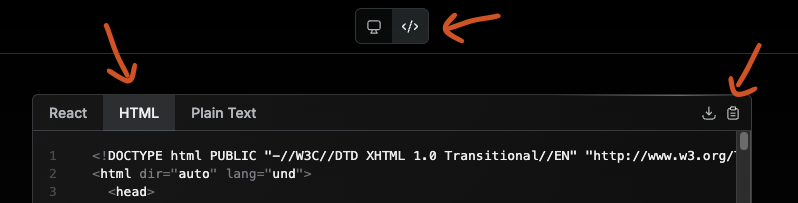
Additionally, and might be easier, by running the npm run export command, we can export the rendered HTML to a .html file inside the out directory. This file can be used to preview the template in a browser or to import it into Pardot.
npm run exportBest practices
Section titled “Best practices”- Use tables to build the layout for maximum compatibility, older clients might not support other layout elements or not behave as we expect them to.
- Do not use
svgin emails, useimgtags instead and image formats should bejpgorpng. - If using
background-imagein styles, usebackground-coloras a fallback if needed. - When using
background-image, apply the fallbackbackground-colorto the wrappingtableortd, and do not place the background image and the background color on the same element. This improves compatibility with clients that partially support background images. - Do not use
margin, as some clients do not support it due to templates being built around tables. Usepaddinginstead. Another workaround is to not use vertical paddings and include empty rows with a fixed height instead. - Be aware that
border-radius, gradients andopacityare not supported consistently across email clients. Avoid relying on them for critical visual elements. - When using images:
- Especially for logos or social icons that are not modified by the email client, make sure they are also visible in dark mode. If that’s not possible, try to find a color or shape that works well in both light and dark modes.
- Always include a meaningful
altattribute and apply basic styling to it. Some clients block images by default, so at least the alt text should be readable and visually acceptable.
- Always test the email in a testing tool:
- Pardot includes its own testing tools.
- If needed, use Email on Acid. If access is not available, notify the person who assigned the task or your manager.
- Test across multiple email clients, always including Outlook 2016 or older, and at least one dark mode client.
- If something looks broken, try to fix it before delivery.
- If the template uses columns, make sure the sending platform supports media queries.
- Platforms like Marketo, HubSpot, Mailchimp and Salesforce support them.
- If the email is sent from a different platform, verify support before delivering the design to the client.
- Media queries should be desktop-first, using
max-width.
Related content
Section titled “Related content”Knowledge Check
Test your understanding of this section
Loading questions...