All in One
All-in-One WP Migration is a plugin designed to help you easily export and import an entire WordPress site—including its database, media files, themes, plugins, and settings in just a few clicks. It’s a one-stop solution for migrating or backing up your site.
We mainly use All-in-One WP Migration in two scenarios:
-
Installing a project from scratch
When setting up a WordPress project locally for the first time, we import the production environment to have an exact copy of the site. -
Getting up to date with an existing project
If you already have the project installed locally but haven’t worked on it for a while, you can re-import the production backup to sync your local environment with the latest content, settings, and database.
The plugin:
- Exports your full WordPress site into a single .wpress file.
- Imports that file into another WordPress installation.
- Handles:
- Posts, pages, custom post types
- Media uploads
- Themes & plugins
- WordPress settings
- Database (with serialized data support)
Install All In One
Section titled “Install All In One”- In your local Wordpress click in
Pluginsand downloadAll In One.
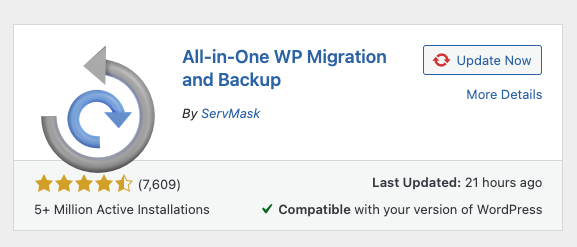
- Activate the plugin in your local Wordpress.
Export and Import All In One
Section titled “Export and Import All In One”- Go to the Wordpress of the project in production (if you don’t know the production url, you can find it in the project’s Slack canvas).
- When you have the correct url, add
/wp-adminto the slug (example:renaissancecharitable.org/wp-admin) and log in with the credentials found in Slack. - Make a backup of the
All in One
- Export it.
- Import the
All in Oneof production in your local Wordpress
Error: Failed import or never finish loading
Section titled “Error: Failed import or never finish loading”If yout get a failed import or the uploading never finish loading (Failed import or never finish loading) it may be because the import limit.
Solution
Section titled “Solution”Add this code to your .htaccess file:
# Set unlimited request body sizeLimitRequestBody 0Error: Login after syncing with production
Section titled “Error: Login after syncing with production”When you import a production backup over an existing local installation, you may encounter a login issue:
- You enter the correct username and password
- WordPress does not allow you to log in
This happens because the imported database overrides local user credentials.
Solution
Section titled “Solution”- Open
phpMyAdmin(http://localhost/phpmyadmin) - Select your local WordPress database
- Open the
wp_userstable
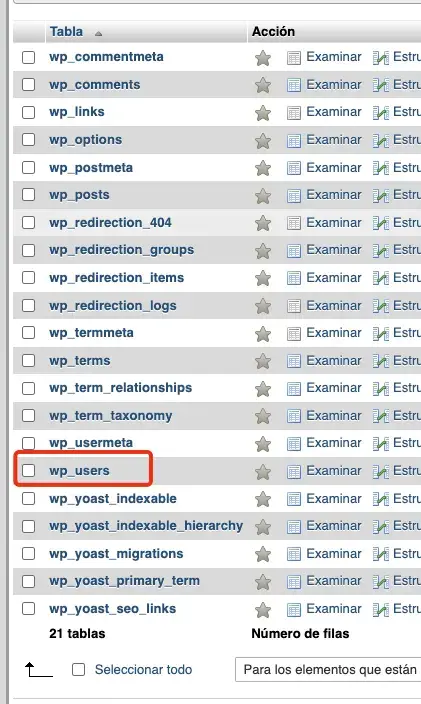
- Find the user
terradev - Edit the
user_passfield:

- Set the function/format to MD5 and paste the password you want to use.
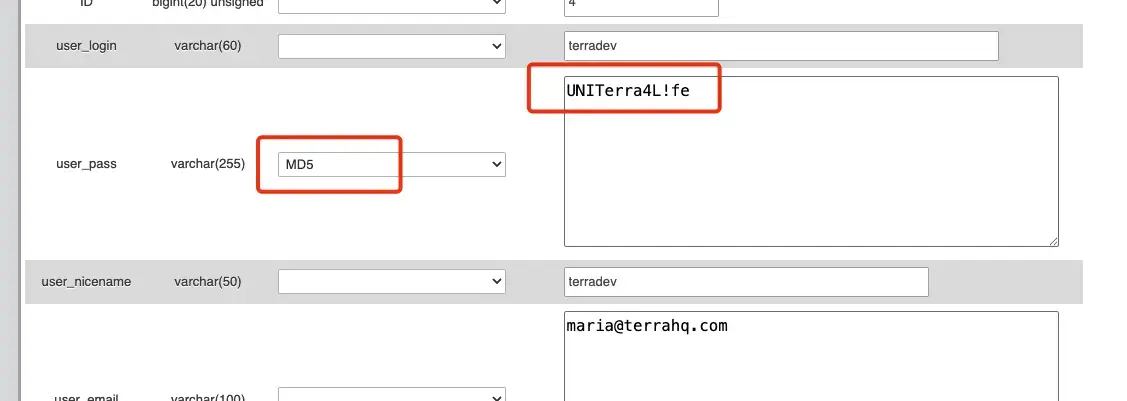
- Save changes and log in again using that password
It’s important to watch this video to have full context of the explained topics. If the video doesn’t load or stops with an error, you can watch it directly on Loom.
→ Once you have All in One installed and imported in local, you can continue installing wordpress from step 07.
Knowledge Check
Test your understanding of this section
Loading questions...