Page Assembly
The page assembly process consists of building pages in WordPress using predefined modules, following design and content guidelines to ensure consistency and quality.
Everything documented here reflects how we assemble pages at Terra, based on our internal workflows, tools, and best practices.
How to correctly assemble a page in Wordpress
Section titled “How to correctly assemble a page in Wordpress”Make sure you have the proper credentials to access the project backend. In most cases, you will use the dev environment for assembly. If this is not specified, always ask the person who assigned you the task.
Is it a Page or CPT?
Section titled “Is it a Page or CPT?”First of all, you need to be sure that you know what kind of page you’re creating, for that, verify the correct location of the page you need to assemble:
-
Pages → When the slug looks like
example.com/contactorexample.com/industries -
CPTs or Pages with Children → When the slug looks like
example.com/industries/cogenerationorexample.com/about-us/careers-
Custom Post Type (CPT): Used for repeatable content with the same structure. Example:
example.com/industries/solarorexample.com/industries/hydrogen -
Pages with children: Used to organize URLs. Pages can be very different. Example:
example.com/about-us/teamorexample.com/about-us/company
-
Modules and styling
Section titled “Modules and styling”To understand which modules belong on each page, refer to the Figma’s Dev Handoff of the project.
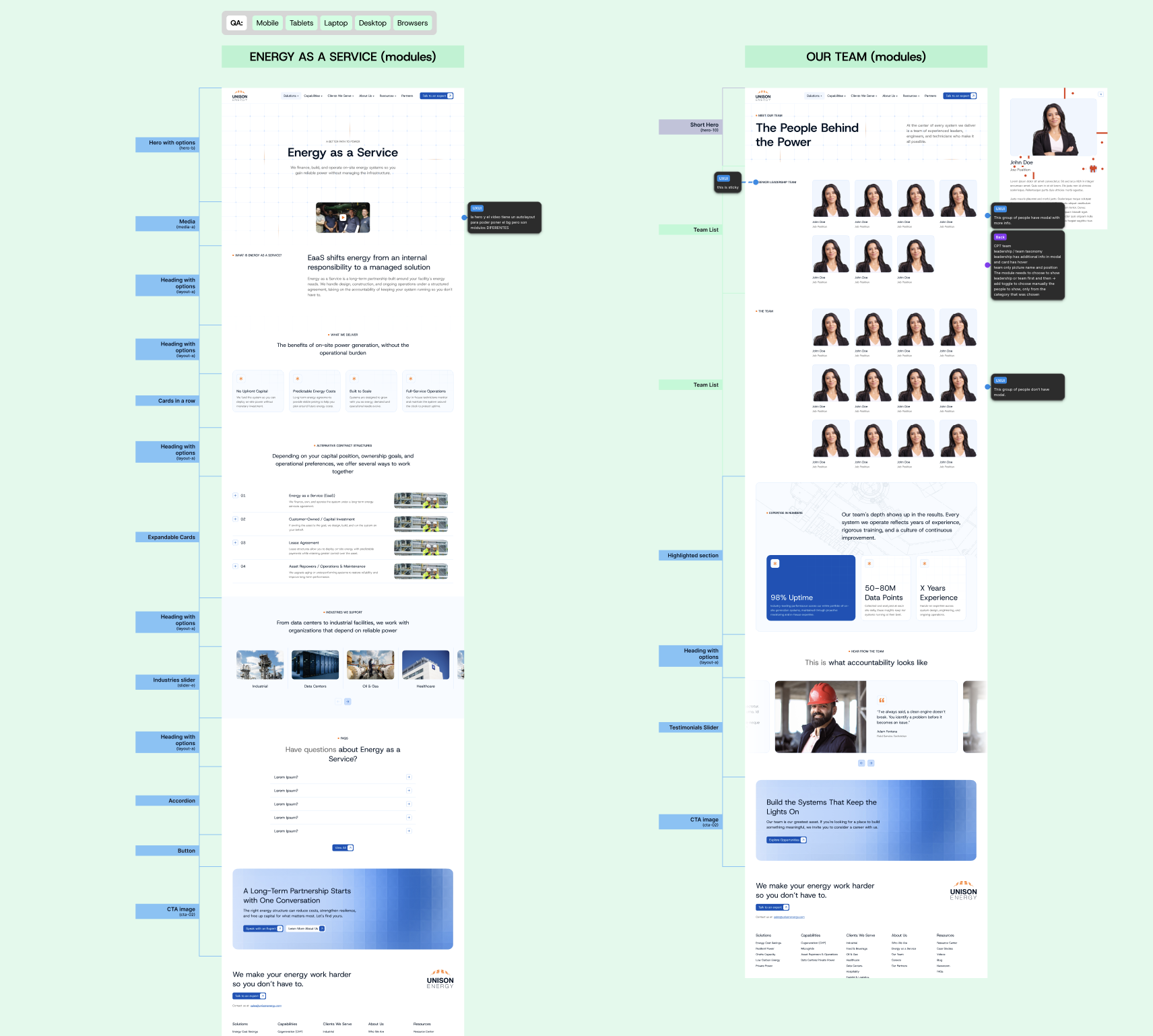
There you will find all pages to be built, the modules to use, and their final design.
- Use the modules specified in Figma
- Ensure styles match the design exactly
- Apply correct spacing (most modules include configuration options to control top and bottom spacing.)
- Compare WordPress and Figma as many times as needed until everything aligns
In most projects, you will have a copy document created by the Content team. This is the single source of truth for all page content.
- Includes page slug, meta title, and meta description
- Mark updated copy in green to indicate it has been implemented
- Paste using
Command + Shift + Vto avoid unwanted styles - External links and downloadable files must open in a new tab
- If the copy document does not match Figma, the copy document takes priority
Assets
Section titled “Assets”Assets should always match the design and be properly configured.
- Upload all assets to the WordPress Media Library
- Image lazy loading configuration:
- Default: true
- Heroes, carousels, and sliders: false
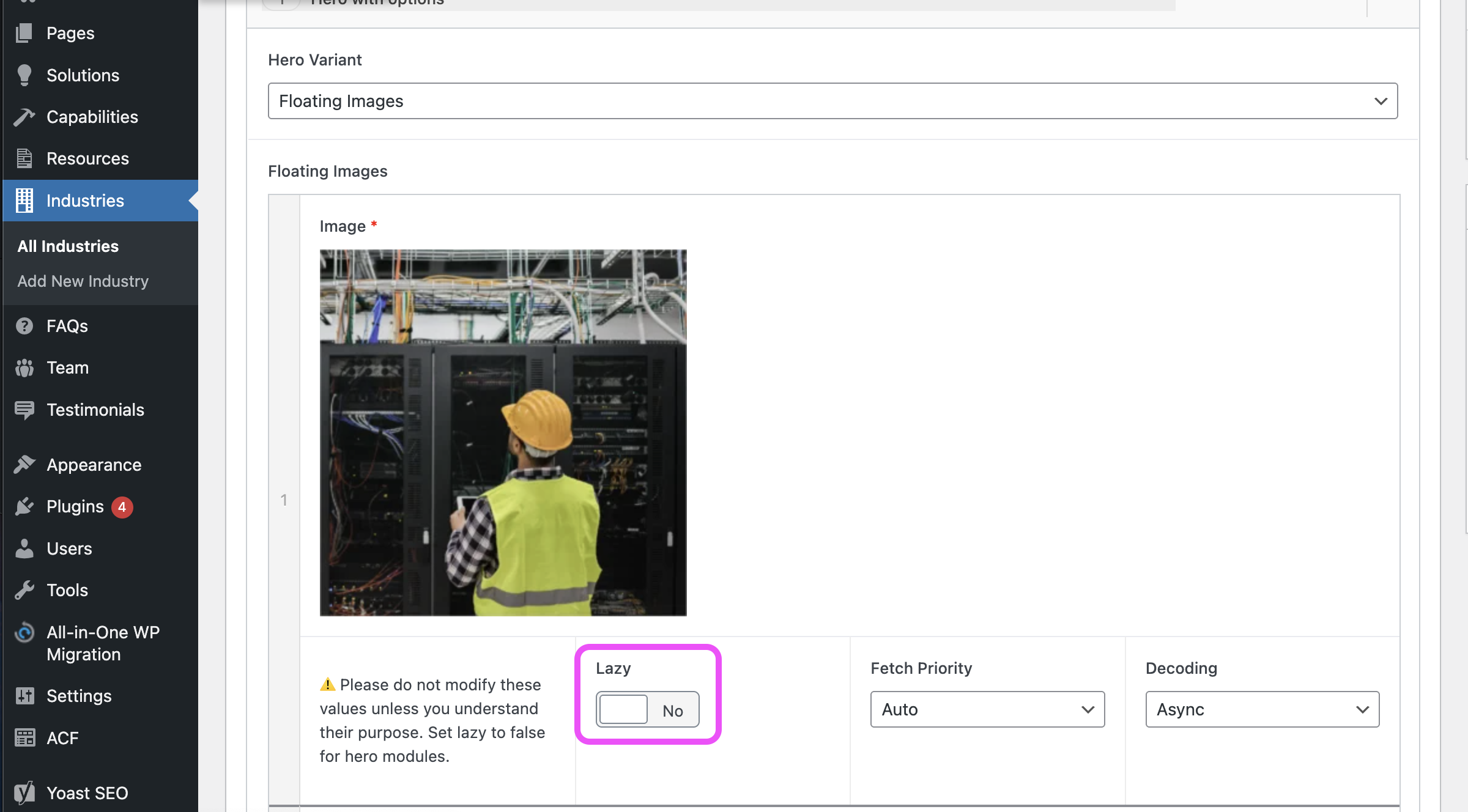
- Refer to the UXUI team for icons and assets when in doubt
Final check
Section titled “Final check”Once the assembly is completed, make sure you compare it with Figma and flag any inconsistencies you can’t solve by yourself.
Test responsiveness thoroughly by using your browser’s inspector tools to preview the page across different breakpoints—from mobile to desktop. This helps catch layout issues, text overflow, or spacing problems that may not be obvious at first glance.
For cross-browser compatibility and device-specific testing, use BrowserStack when necessary. This is especially important for critical pages or when you need to verify behavior on real devices and browsers that you don’t have direct access to.
Before marking your task complete:
- Verify all modules match the Figma design
- Test interactive elements (buttons, links, forms, carousels)
- Confirm all external links open in new tabs
- Review text alignment and spacing consistency
Best practices
Section titled “Best practices”- Pay close attention to detail and use intuition to detect errors
- Flag inconsistencies in dev handoff or copy documents
- Always ask the dev manager or assigned person if anything is unclear
- Always use
Command + Shift + Vwhen pasting content - Optimize assets before uploading them
- Double-check the final result against Figma before marking the task as complete
Knowledge Check
Test your understanding of this section
Loading questions...